Commands and keys
Quick reference
Commands are grouped the same way /help lists them. See Keys and layout, Activity panel, Diff browser, Tool-call inspector, Popup keys, and !command for interactive controls.
| Group | Commands |
|---|---|
| App | /help (/commands), /config, /bind, /unbind, /quit (/exit) |
| Model | /model, /effort, /advisor, /login, /logout, /mcp, /extensions, /subagents, /reload |
| Session | /new, /delete, /resume, /rename, /attach (/switch), /fork, /restart, /stop, /detach, /compact, /autocompact, /jobs, /continue (/retry), /worktree |
| Inspect | /status, /usage, /tools, /diffs, /links, /copy, /paste-image, /tree, /btw (/side), /agents |
| Display | /show-activity, /show-tasks, /autohide-tasks, /show-thinking, /show-edits, /show-commands, /group-tools, /theme, /syntax, /theme-preview, /redraw |
| Extensions | /plan, /manager, /reflect, /browser, /allow-writes, /ponytail, /skill:NAME |
Slash commands
Type / to open the command menu, then narrow it by typing. Use Tab or the
arrow keys to choose. Enter accepts a selected completion; another Enter runs it.
In Ghostty Smooth (popup_view auto), this menu and the @ file menu float
over the conversation as a native list instead of being drawn in the terminal,
so a long menu never scrolls the conversation away. The keys stay the same,
since the editor keeps the keyboard, and clicking a row accepts it.
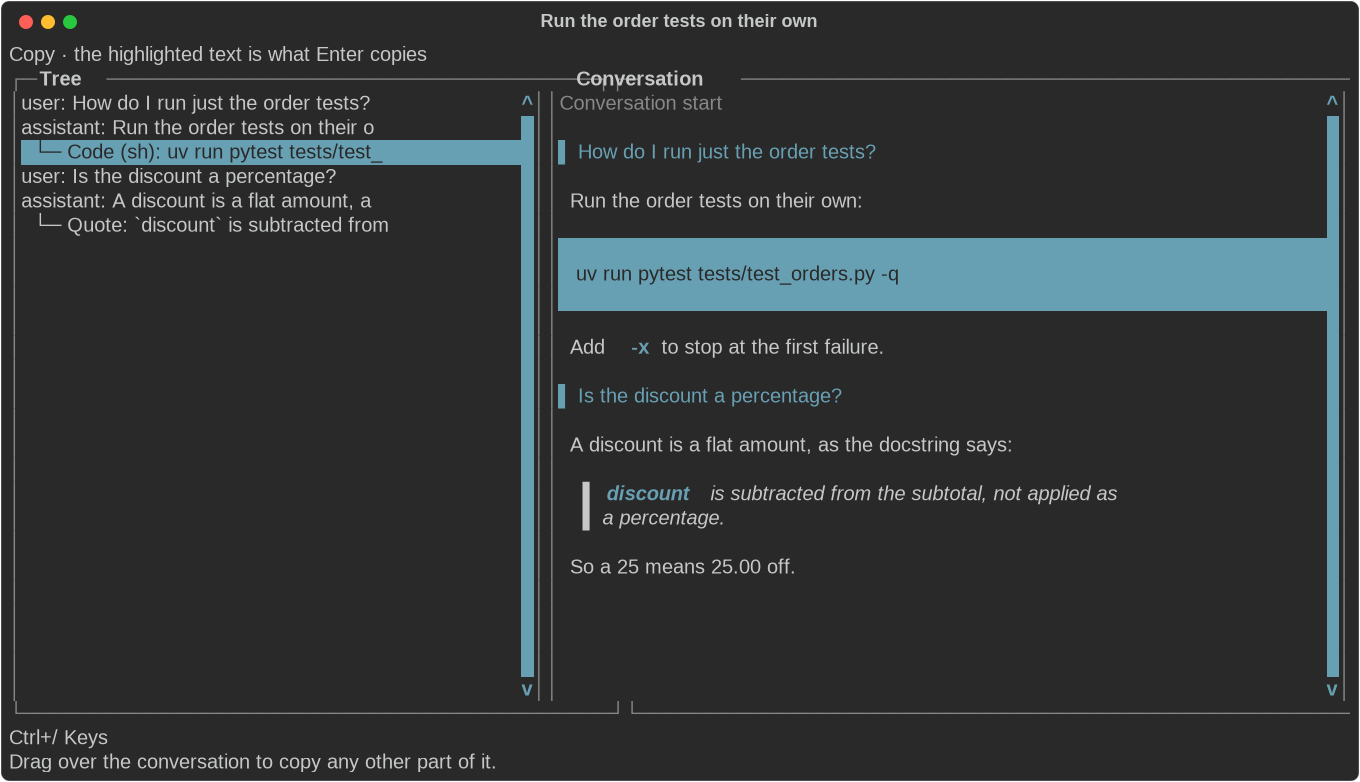
/help(or/commands): grouped command list and keyboard shortcuts./config: open the searchable settings editor to inspect values and their sources, edit user/project defaults, or remove an override./config list | diff | path | get KEY | set KEY VALUE | unset KEY | reset | project ...keeps the direct-command interface, with completion for setting names and values. See Configuration./bind(or/bind list): list default, custom, and disabled prompt bindings;/bind KEYinspects one./bind KEY /command argsor/bind KEY @actionsaves a mapping./bind actionslists built-in targets,/bind reset KEYrestores one key, and/bind resetrestores all defaults. See Keybindings./unbind KEY: disable a prompt action key, including a default binding. Changes apply immediately and are saved for your user, not the project./login [claude|openai-codex|antigravity]: sign in in a browser (bare/logindefaults to the current model's provider, orclaude).clauderunsclaude auth loginfor the loginclaude:models use (details);openai-codexuses Pydantic AI's OAuth flow (no CLI required);antigravityrunsagy acp --login, opens the Google sign-in link, and opens a masked prompt to forward the pasted authorization code or callback URL toagy(needs no active work or queued messages).anthropic:models useANTHROPIC_API_KEYand have no sign-in./logout [openai-codex]removes pcode's stored Codex login, leaving CLI credentials untouched; it needs an idle conversation./login claudeand/login openai-codexalso work mid-turn, to switch accounts without stopping a long run: the turn carries on, and its requests use the new login once you finish in the browser. Ctrl+C (or Ctrl+D) stops the turn first, and the waiting sign-in only when nothing else is running./model: searchable model picker for configured providers. Keeps the conversation; chosen mid-run, the running turn's next request already uses it. To switch for one prompt only, put a$PROVIDER:MODELword anywhere in it (optionally+EFFORT, as infix this $openai:gpt-5+high) or a bare+EFFORTword; that turn runs there and the next prompt is back on the conversation's model. Only the first such word counts.$completes model names as it does in/btw. A$word without a full id under a known provider ($HOME,$opus,$image:latest) or an unknown+level is ordinary text. Another model starts without the conversation's prompt cache, and automatic compaction is skipped for its turn, since that model's window and summarizer would decide what the conversation keeps. Such a prompt never steers a running turn; it queues as its own./continueof it asks the conversation's model./effort [low|medium|high|xhigh|default]: set reasoning effort; bare shows the current level (details)./advisor [MODEL|off] [--save]: a stronger model the session's model can consult on hard decisions, such as Claude Fable 5.2 advising Opus 5.5. Bare opens the model picker,offremoves it, and--savemakes the choice theadvisor_modeldefault (details)./mcp [list | enable NAME [--save] | enable-all | disable NAME [--save] | logout NAME]: manage MCP servers./extensions [list | on NAME | off NAME]and/reload: list or toggle extensions, and reload them without losing the conversation (Extending pcode)./subagents [MODEL ...|off]: the modelsdelegate_tasksuggests for running a sub-agent (any otherprovider:modelalso works); each word completes from the/modelcatalog. Bare lists them,offclears them (details)./tools: the tool-call inspector for the current conversation, including resumed calls./tools failedopens it filtered to failures, and/tools editsto calls that changed files./diffs: review the session's work as a git diff, leave notes for the agent, and see what's new since your last review (see Diff browser)./links: pick a URL from the active conversation branch: your prompts, tool arguments and results, or the assistant's replies, most recent first. Duplicate URLs appear once, at their latest position; tool links show the tool name. The picker opens in its search line: typing filters URLs, labels, and sources (case-insensitive, every word must match) while↑/↓move the selection.Enteropens the URL in the default browser (openon macOS,xdg-openon Linux, the shell association on Windows).Escclears the search, or closes the picker when the search is empty. Ctrl+T shows/hides tool links (shown by default; URLs also in prompts or replies stay). Filters reset when you reopen it. Output dropped by truncation or stored only in a spill file isn't searched. Handy when your terminal or tmux doesn't make links clickable./copy: copy a prompt, a response, or one quote or code block from the active conversation branch to the system clipboard. It opens in the same layout as/tree: the list on the left holds each prompt and response, with a row for every quote and fenced code block under the response it came from, and the Conversation pane on the right highlights exactly what Enter will copy. The newest response is selected first. A quote renders with a▌rail and wraps to the terminal, which makes it awkward to select by hand, so its row copies the text without the>markers, and with lines that only wrap in the source joined, as the quote displays them (blank lines and hard breaks stay). Code is copied without a trailing newline, so pasting it into a shell doesn't run it. Escape closes the popup without copying. When the only response is plain text,/copyskips the popup and copies it straight away. pcode asks the model to put text meant for pasting elsewhere, such as a message to send, in a quote. Ctrl+Y with an empty editor does the same.
 -
/paste-image: save the image on the system clipboard to a file and add its
path to your draft, so the prompt sends the picture. See
images in a prompt.
- /status: current model, workspace, session storage path, completed turns, token usage,
and a breakdown of the prompt overhead re-sent with every request (see
Where the fixed prompt goes). Opens a popup in
the interactive editor; prints inline otherwise.
- /usage [claude|openai-codex|antigravity|all]: plan limits and spend, fetched when you
run it. With no argument, checks the current model's provider when it is one of those
three, or all of them otherwise. No admin key is needed. For Claude, pcode runs Claude
Code's own /usage headless (claude -p /usage) and shows its session and weekly
limits; the CLI answers from its own login, so pcode never reads Claude Code's token.
Codex shows the session (5h) and weekly percentages with their resets, plus spend
against a cap where the seat has one, using pcode's /login openai-codex or the Codex
CLI's auth.json, through PCODE_LLM_PROXY when set (undocumented endpoint, may
change). Antigravity runs agy -p /usage --output-format json and shows each model
group's 5h and weekly usage and reset times. Plain API keys have no per-user usage
endpoint and aren't covered.
- /worktree [status|merge|resolve|finish|remove|list|clean]: manage this session's git
worktree (details).
- /plan [--obsidian|--local] [request]: discuss a change and keep a written plan
before implementing. New plans go in .pcode/plans/ by default; --obsidian
keeps the plan in your org's Obsidian vault instead (or a shared default
vault when no org is configured). Bare /plan resumes the active plan, or else the newest local one.
/plan status shows its file; /plan off stops planning without deleting it.
Approve in the conversation to start implementation. See
Planning in Obsidian for where vault plans go and feedback from Obsidian.
- /manager [on [request]|off|status]: make the agent a coordinator that hands the
implementation to workers, checks each result, and keeps a decisions log, for large
tasks that split into loosely coupled pieces. Opt-in: /extensions on manager adds
it, after which the agent can also switch it on itself and tells you when it does. /manager status lists the workers, their reviews and
tokens, and the budget used. See Manager mode.
- /reflect [--project|--all] [focus]: propose an instruction, skill or extension change
from what went wrong in this session (or, with a flag, across this project's or every
project's saved sessions), apply it if you approve, and log the lesson. See
Learning from a session.
- /browser [launch|attach|off|status]: give the model a real Chrome browser to drive
(launch opens pcode's own Chrome window; attach joins an existing Chrome, Chromium,
or Edge window with remote debugging). See Browser.
- /allow-writes [--global] [PATH]: allow file writes to a directory or file outside the
workspace for this session, or --global for every session; bare shows the current
policy. See Tool permissions.
- /ponytail [lite|full|ultra|off|status]: opt-in extension (/extensions on ponytail)
that dials how hard the model resists over-building. See
Ponytail.
- /continue (alias /retry): pick a failed or cancelled turn back up from its last
checkpoint without a new message. Finished tool calls are kept, not run again.
- /jobs [stop ID|stop all|watch ID|unwatch]: bare /jobs opens a popup listing this
session's shell jobs, running first, beside the selected job's command and live output.
Ctrl+W pins or unpins its output tail in the command preview, Ctrl+K stops it,
and Enter/Esc closes. The subcommands do the same without the popup. Jobs outlive the
turn that started them; see Shell jobs.
- /compact [focus]: summarize older context with the current model; keep recent history.
- /autocompact on|off|TOKENS|auto: toggle automatic compaction (saved; default on).
/autocompact 200k compacts once context reaches 200k tokens even if the window is
larger (minimum 50k), and the footer shows usage against that cap; auto removes
the cap. Works mid-turn, from the next model request.
- /new [PROMPT]: start a new saved conversation; clears the screen and retained
scrollback, keeps input history. With PROMPT, a new
background session works on it instead and this
terminal stays where it is, mid-turn or not.
- /delete: delete the current saved session and start a new conversation; clears the
screen and retained scrollback, keeps input history.
- /resume: browse and search saved conversations (prompts, responses, tool calls,
name, or session ID); resume one in place.
- /rename [NAME | -]: name this conversation so /resume lists and finds it by that
name; - clears it. Bare, it asks the conversation's model to name it from
everything so far, in the background, so a running turn carries on. Available after the
first prompt. A name replaces the title the model gives it.
- /attach [HOST | -] (alias /switch): pick another running
background session and show it here, with forks
nested under their original; - is the one this terminal showed before. The session
you leave keeps working if it runs in a host, and ends if it runs in this terminal
(/attach - brings it back). /resume is for conversations that aren't running.
- /fork [PROMPT]: start a copy of this conversation in a background session, in a git
repository in a worktree of its own. With PROMPT the copy works on it and this
terminal stays here; bare, it switches to the copy. Once this session runs in a host
(/detach, or by itself once idle after /fork PROMPT), both run at once and Ctrl+^
flips between them (parallel sessions).
- /restart: restart this background session's host on the pcode installed now, keeping
the conversation. /restart all restarts every host on older code
(sessions).
- /stop: end this background session's host and quit. Quitting any other way (Ctrl+D,
/quit) does the same.
- /detach: quit but leave this background session's host running until it
goes idle; pcode --attach returns to it. In a
session running in this terminal, it first
moves the session into a host and stays on it.
- /tree: browse and fork the conversation; select a user prompt
to edit it, or an assistant response to continue from there. Existing branches are kept.
Browsable at any time; forking waits for the running turn.
- /btw QUESTION (alias /side): ask a side question against the context the model
is working with right now, without interrupting or queueing it. Answers open in a
viewer by default (auto-opened when ready via
btw_auto_open), or with bare /btw or Ctrl+Q at any time; in Ghostty Smooth, a hosted session opens threads in a drawer
instead. You can send a follow-up to
the thread, or keep it in the conversation.
$PROVIDER:MODEL words anywhere in the question (/btw $openai:gpt-5 QUESTION) ask
other models instead, one side question each (choosing the model).
A +EFFORT suffix ($openai:gpt-5+high), or a bare +EFFORT word for the
conversation's model, sets that question's reasoning effort from the /effort levels.
- /agents: follow delegated agents live in a popup: each agent's worker id, plan
step, state, tokens, assignment, plan, prose, and tool calls, which the transcript
only summarizes. Works while the turn runs. Ctrl+T shows or hides reasoning;
a answers a worker's question, m messages a worker, and r shows its report
(see talking to workers). Agents are kept in memory
only, so a resumed session starts with none.
- /skill:NAME [text]: run a discovered skill; see
Skills as slash commands.
- /theme light, /theme dark, /theme auto: change the input and future output
palette and save it as the default; bare /theme toggles for this session only.
Auto (the built-in default) detects the terminal background at startup, falling
back to COLORFGBG, then dark (including for redirected output), and asks the
terminal again once the editor is up and on /theme auto. A saved theme takes
precedence. Auto also follows the terminal when it switches between light and
dark while pcode runs: immediately in terminals
that announce the change (Ghostty, kitty, iTerm2 3.6.6+, foot, GNOME Terminal and
other VTE 0.82+ terminals, Contour, and tmux 3.6+ passing it on), and within a couple of
seconds of the system appearance changing on macOS or GNOME, for any terminal that
answers background queries. A terminal that keeps its own colors when the system
switches keeps its palette too. pcode config set theme auto also restores auto mode, and
pcode --theme light|dark|auto picks the palette for one launch. The
palette decides which /syntax setting applies (syntax_dark or syntax_light);
body text and background stay terminal-native either way.
- /syntax NAME: choose colors for the active palette and save them as its default;
bare /syntax reports the current choice. /syntax terminal is the default:
scrollback, fenced code, the prompt, task rows, and menus all use the terminal's own
ANSI colors, so pcode follows your terminal's scheme. Any Pygments style
(/syntax gruvbox-dark, /syntax monokai) switches to pcode's own colors: headings,
links, quotes, and tables use the palette, and code, popups, and prompt are derived
from the style. See Code highlighting styles.
Retained scrollback is rebuilt with the new colors, like /redraw.
- /theme-preview: sample Markdown, code, diffs, tables, and tool summaries, then a
gallery of every installed Pygments style (current one marked) with the command that
selects it. Never calls the model and isn't added to the conversation.
pcode --theme-preview prints the same and exits.
- /redraw: rebuild the transcript at the current width; see
Regenerating the terminal transcript.
- /quit (alias /exit): exit. It cancels a running turn and waits for its cleanup first.
Toggles such as /show-thinking, /show-activity, /show-tasks, /show-edits,
/show-commands, /group-tools, and /autohide-tasks are described with the features
they control, on this page and in the transcript.
Popups (sessions, conversation tree, models, tools) use the terminal's default
background and text with reverse-video selection, whatever /theme and /syntax
say. Opening a popup cancels popup requests already waiting, so pressing Ctrl+L
twice quickly opens one picker, not a second after you close the first. Queued
messages and other commands are unaffected, and asking again after closing opens
the popup normally.
File references with @
Type @ anywhere in a prompt to reference a workspace file. The menu matches any
part of the path, so @ui.py finds src/pcode/ui.py; files whose name matches
come first, and each row shows the file's size. Accepting a match inserts the
workspace-relative path, ./src/pcode/ui.py, which is what the model's file tools
take (names with spaces are quoted). References are underlined in the editor.
Only the path is sent. pcode never reads the file for you, so the model decides whether reading it is worth a call; the size in the menu shows that cost up front. Images are the exception: see the next section.
In a Git checkout, candidates are tracked plus untracked files, honoring
.gitignore. Elsewhere they come from ripgrep (skipping hidden entries, honoring
.ignore, and excluding build directories such as node_modules), or a plain
directory walk when ripgrep isn't installed. The list refreshes at most every ten
seconds, so a brand-new file can take a moment to appear.
Images in a prompt
A prompt that names a PNG, JPEG, GIF or WebP file sends the picture with it:
the header in ./tmp/shots/tools.png is clipped, why?
Any way of putting the path in the prompt works:
- Type it, or pick it with
@. Relative paths start at the workspace, and~/works. - Drop the file on the terminal. Terminals type a dropped file's path, quoted or with its spaces escaped, and pcode reads both.
- Paste a copied image with Ctrl+V, as in Claude Code and Codex (or
/paste-image). A terminal only pastes text, so pcode reads the image from the system clipboard, saves it under~/.local/state/pcode/pastes/, and adds that path to your draft. Cmd+V on macOS is the terminal's own text paste and carries no image; a terminal that answers it with an empty paste when the clipboard holds only an image (kitty and Ghostty are reported to) runs/paste-imagefrom there too. A screenshot taken with Cmd+Ctrl+Shift+4 goes straight to the clipboard, ready for Ctrl+V.
When the turn starts, a note lists what was attached
(Attached 1 image: ./tmp/shots/tools.png), and a warning says why a named file
was not: not really an image, or too large for any provider to accept (3.75 MB,
or 8000 pixels on a side). A pasted image that large is shrunk to 2000 pixels on
its longest side on macOS (with the built-in sips); elsewhere you are told when
you paste it. Up to 10 images go with one prompt. Messages you send while the
agent works bring their images the same way; side questions (/btw) send the
path only. File names inside a fenced code block, such as pasted ls output,
are not attached.
The prompt itself stays text, so the path is what history, /continue and the
session journal keep, and the file is read again each time the prompt is sent.
Pasted images are kept for 30 days. Reading the clipboard over ssh would read the
remote machine's, so /paste-image refuses there: copy the file across and name
it instead. On Linux it needs wl-paste (Wayland) or xclip (X11); on macOS it
uses pngpaste when installed, and AppleScript otherwise.
Whether the model can see the picture is the same question as for read_file:
see images.
Keys and layout
The table below shows the defaults. See Keybindings to customize
prompt actions with /bind, choose a leader, or configure vi editing.
Actions that pick a mode, open a picker, or toggle a widget follow the shortcut prefix: by default, hold Ctrl while pressing the letter. Ctrl+/ browses contextual help; the shortcuts it lists still work while it is open. Enter, the arrows, Ctrl+J, Ctrl+C, and Ctrl+D never change.
| Key | Action |
|---|---|
| Enter | Send using the active send mode, or accept a selected completion |
| Ctrl+Enter | Interrupt the current turn and send the draft; send normally when idle |
| Ctrl+/ | Browse contextual help |
| Ctrl+S | Cycle steering → queue → interrupt for the next send only |
| ↓ | Newline when on the last line with nothing to complete or recall (works in vi insert mode) |
| Ctrl+J / Shift+Enter | Newline; see Newlines in tmux if neither reaches pcode |
| Alt+Enter | Newline in Emacs mode only (Esc followed by Enter also works) |
| Tab / arrows | Browse completion; arrows also navigate input/history |
| Ctrl+L | Choose a model (keeps the conversation; applies from the next request). While a completion menu or a grey history suggestion is showing, Ctrl+L accepts it instead, like Tab or → |
| Ctrl+N / Ctrl+P | Raise / lower reasoning effort from the next request |
| Ctrl+^ | Back to the session this terminal showed before (/attach -) |
| Ctrl+O | Show/hide the activity panel: thinking, tool calls, tasks and running commands (saves the default) |
| Ctrl+T | Choose where thinking shows: o off, a activity panel, b scrollback (saves the default) |
| Ctrl+Y | Copy the current draft to the system clipboard; with an empty editor, /copy chooses a response |
| Ctrl+Q | Open or toggle /btw side-question threads (@side-threads) |
| Ctrl+\ | Cycle to the next /btw thread in the drawer (@next-side-thread) |
| Ctrl+G | Cycle where shell command output shows: off, live in the activity panel, also mirrored to scrollback (/show-commands, saves the default) |
| Ctrl+V | Paste an image from the system clipboard (/paste-image): see images in a prompt |
| Ctrl+Z | Show/hide edit diffs in scrollback (/show-edits, saves the default) |
| Ctrl+] | Group/ungroup runs of tool calls (/group-tools, saves the default) |
| Ctrl+C | Discard input (↑ brings it back); cancels the running turn only when the prompt is empty |
| Ctrl+D | Exit on empty idle input (stopping a background session's host); cancel during generation |
Terminal flow control is off while the prompt is active. There is no
incremental history search at the prompt. With key_prefix ctrl, Ctrl+S
cycles send mode and Ctrl+O replaces the editor's insert-newline binding;
Ctrl+J still inserts a newline.
Ctrl+Y copies whatever is in the editor, so you can move a draft elsewhere
without sending it. In direct chord mode only, this replaces
yank in Emacs mode and copy-character-from-above in vi insert mode. With
nothing typed it runs /copy instead, to choose a response or a quote
from it. Copying uses a local helper (pbcopy, wl-copy,
xclip) or OSC 52 over ssh, like the popups, and truncates at 64 KiB.
Setting acknowledgements are transient. Toggles and display settings
(/show-thinking, /show-activity, /show-edits, /show-commands,
/group-tools, /autohide-tasks, /autocompact, /theme, /syntax,
/effort) answer on a line just above the editor and clear after five seconds.
They never enter scrollback, so flipping an option repeatedly doesn't litter the
transcript. Long acknowledgements wrap and are capped at six rows. Everything
else a command reports (/status, /mcp, /help, login flows, session and
model changes, warnings, errors) goes to scrollback. Without a live panel
(redirected output, --print), acknowledgements are printed instead.
The editor
The input sits at the bottom of the pane from startup: one line plus its border. It grows upward for wrapped text or newlines and shrinks as text is removed. Completions appear above it. Very long input scrolls within the available height. Multiline bracketed paste works; mouse capture is off.
Wrapping is word-aware: a word that would straddle the right edge moves to the next row whole. This is display only; the text you send is unchanged. A single word wider than the pane still has to split.
The editor stays usable while the model works, including multiline input,
history, slash completion, and @ references. See
Sending while the agent is working.
Editor history is the prompts you sent in this session, plus anything you typed and did not send:
- Ctrl+C keeps the text it discards as a history entry, so ↑ brings it back.
- Editing a recalled prompt and then moving off it with ↑ or ↓ keeps the edit as its own entry when you next send something or press Ctrl+C.
- Unsent text is saved every 10 seconds, and when pcode exits, to
~/.local/state/pcode/drafts/(under$XDG_STATE_HOMEif set). The next session, in any directory, starts with the newest 50 of those in its history; sending one, as it is or edited, deletes its file.
Sent prompts are not carried over, and text you discard on purpose is saved like any other draft: delete its file if it held something sensitive.
Activity panel
The activity panel is everything live about a turn: the tool calls the model
is making, on plain rows above the editor box; inside the box, under its
status row, the model's newest thought and the task list; and above the box a
running command's output (with show_commands activity-panel or scrollback).
Ctrl+O shows or hides all of it at once.
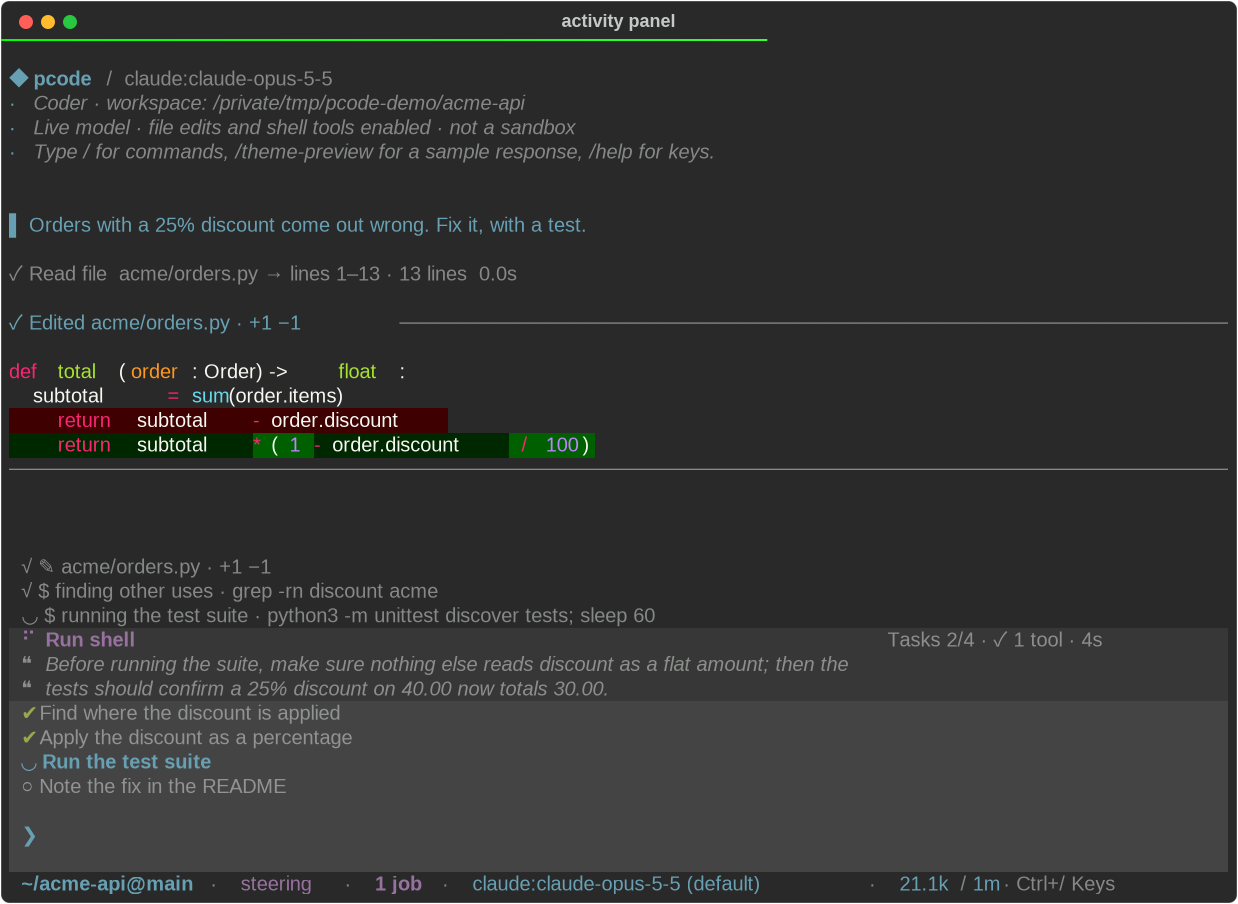
Each kind of row has its own place and look, so you can tell them apart at a glance:
 √ ✎ acme/orders.py · +1 −1
 ◜ $ python3 -m unittest discover tests
┌─ ⠋ Run shell ───────────────────────────── Tasks 2/4 · ✓ 3 tools · 4s ─┐
│❝ Before running the suite, make sure nothing else reads discount       │
│❝ as a flat amount.                                                     │
├────────────────────────────────────────────────────────────────────────┤
│✔ Find where the discount is applied                                    │
│◜ Run the test suite                                                    │
│○ Note the fix in the README                                            │
├────────────────────────────────────────────────────────────────────────┤
│❯                                                                       │
└────────────────────────────────────────────────────────────────────────┘
- Tool calls sit above the box on the terminal's own background, one row each, newest last, the way they read in scrollback once they finish.
- The status row is the box's top border: a spinner, what the turn is doing, and on the right the plan's count, the run's tool count and how long this phase has lasted.
- The thought is quoted: faded, in italics, with
❝opening every row. - Tasks sit below a divider, with their status icons in the column the
prompt's
❯shares.
With the default frame_style shaded, there are no lines: the status row and
the thought share a slightly darker header, and the tasks and your draft keep
the box's own shade. With frame_style borders a divider line sets off the
tasks.
/config set attach_activity off moves the thought out of the box too, onto
rows of its own above the tool calls; it still shows and hides with the rest of
the panel. attach_tasks off gives the task list a box of its own above the
editor. Both apply immediately.
Status and tool rows
The status row always reads the same way. The command, path, or pattern a
tool call works on gets its own row above the box, with the full width of the
pane, so the status row stays short. While the call runs, its row spins in a
muted shade with a round spinner, so it never reads as the status row's dotted
one, which means the model is working. A glyph stands in for the call's verb:
$ runs a command, ⌕ searches, ✎ edits or writes a file, and ⎘ reads
one (or their Nerd Font equivalents when glyphs uses Nerd Fonts). A tool
without one keeps its verb spelled out. Many fonts lack ⌕ and ⎘, and the
terminal borrows them from another font; if they look off in yours,
/config set tool_glyphs off drops them and names the verb once the call
settles. Shell calls keep $.
Once a call finishes, its spinner turns into a light √ (lighter than a
finished task's ✔, so the two never read alike) or ✗, and the row stays
while the next calls run, newest last, so parallel calls each get a row. The
turn's three latest calls are shown, fewer in a short pane;
/config set tool_max_lines 1 keeps just the call the status row is on.
A finished call's row clears after 10 seconds (tool_linger_seconds; 0 keeps
it until newer calls push it out).
Work pcode runs itself has no tool row, just its detail on the status row:
┌─ ◜ ◈ Compacting context ▸ keep tests ──────────────────────────── 4s ─┐
A spinner means the turn is waiting on that row. Running jobs are counted in
the footer below the editor as 1 job or N jobs, including jobs being waited
on; the count is hidden at zero. Use /jobs for individual job details.
The phase is the one highlighted word, and a stall shows as its clock climbing
(Thinking · 40s). With the task list hidden (/show-tasks off), the
plan's active step follows the phase as its detail
(Waiting for model · Adding the migration). With the whole activity panel
hidden (Ctrl+O or /show-activity off, or a pane too small for it), a lone
running call's command or path takes that place (Run shell · make test), so
the row still says what the turn is doing. Each row holds what it says for a moment, so a burst of
quick calls reads as progress rather than flicker. ◈ marks work pcode runs
itself, such as compaction.
The thought is the model's newest, kept until its answer starts streaming;
that is the /show-thinking activity-panel mode (see
thinking).
Tasks
Tasks and running sub-agents share the panel's lower section. Task
rows show status icons and keep the active item in view. By default the text is
shaded by status too: the active task stands out and finished ones fade.
/config set task_style icons gives every task's text the same weight instead,
so only the coloured icon (✔ done, ↺ in progress, ○ pending, –
cancelled) says where it stands; task_style status brings the shading back.
Both apply immediately. Running
sub-agents appear beneath the active task with tree
guides (├──, └──, │); with no active task, they appear unparented.
Between turns the plan's heading (Tasks 2/5) takes the box's top border.
A finished call gets its line in scrollback.
Showing, hiding and sizing
Press Ctrl+O or use /show-activity [on|off] to hide or show the whole
panel, thought, tool calls, tasks and a running command's output together,
without stopping work or clearing tasks. The status row, prompt and queue stay
visible. Visibility is saved (default on); pcode config set show_activity off
sets it from the shell.
Each part can also be switched on its own, inside the panel:
| Part | Switch |
|---|---|
| Thinking | /show-thinking activity-panel (or off, or scrollback to stream it there instead); Ctrl+T |
| Tasks | /show-tasks [on|off] |
| A running command's output | /show-commands activity-panel (or off, or scrollback to also keep it there); Ctrl+G |
By default the task list hides when the model finishes a turn, keeping the
idle prompt compact. It returns on the next turn, and Ctrl+O brings it back
immediately. /autohide-tasks off (or pcode config set autohide_tasks off)
keeps it on screen.
The panel also hides in a pane shorter than tasks_min_rows (default 30) or narrower
than tasks_min_columns (default 100), thinking and tool rows included, and
returns when the pane grows back, so a split in either direction keeps the
transcript readable and the status row says what is running. Each attached
terminal checks its own pane. Ctrl+O shows it in a small pane anyway until the
pane crosses the threshold again; 0 turns either check off. tasks_min_rows and
tasks_min_columns apply immediately through /config.
pcode config set tasks_max_height 0.5 caps the editor box, the thought and
tasks in it included, at half the screen; a whole number such as 20 caps it at
that many rows. Under a cap the thought gives way first; tasks (and any running
sub-agents) get the room next and the editor keeps at least one text row, so a long
plan shows more steps while a long draft scrolls inside the editor. Unset (the
default), the thought and tool rows share at most a quarter of the pane, the
task list takes at most 10 rows or half the screen, whichever is smaller, and
the editor grows into what's left. In small panes the task list shrinks
further, keeping the active task and its sub-agents; an empty one is hidden.
Task additions and status changes show up as soon as the model starts streaming
them, before the tool runs. Those early updates are provisional: the tool result
confirms them, and a cancellation or failure discards them. Only confirmed plans
are saved. Successful planning calls update the task rows without adding tool
rows; failed ones stay visible as failed calls. Plans persist across turns and
resumed sessions; /new clears them.
Delegated sub-agents
A running delegate_task has its own row, starting with » instead of a status
icon and drawn in its own color, so it never reads as one of your tasks. It
leads with the purpose the model gave the delegation, then elapsed time and
phase. A sub-agent other than the built-in worker, such as an extension's
reviewer, is named ahead of its purpose (» Reviewer: checking the fix). With
no purpose, the row names the agent and ends with the start of its assignment
instead. The phase is Waiting for model, Thinking,
Working (one of its tools is running), or Responding. The row stays for the
sub-agent's whole run and leaves when it finishes; scrollback records whether it
was done or failed. While nothing else is running, the status row reads
Waiting for 2 agents, and shows the newest one's row when the widget is hidden.
A sub-agent that plans shows up to three of its tasks beneath it, centered on its active task, and they update as it works. Its own tool calls show on the status row, like yours, rather than in the tree. Its plan is separate from yours: never saved and never merged into your plan, and it leaves with the delegate. The built-in worker always plans; an extension's delegate can opt in (see Sub-agents in the extension guide).
↺ Fix the flaky login test
└── » investigating the retry path · 12.4s · Working
    ├── ✔ Read the retry code
    ├── ↺ Reproduce the failure
    └── ○ Report back
Shortcut prefix
Pcode action shortcuts use a key behind one prefix, the key_prefix setting.
Customize the main prompt's mapping with /bind;
popup mappings are unchanged.
The default is ctrl, using direct Ctrl chords: Ctrl+S cycles the send
mode, and Ctrl+L opens the model picker. There is no global action-menu leader
by default. To use a leader, configure it explicitly, then restart the prompt:
pcode config set key_prefix ctrl+b           # Ctrl+B, then s cycles the send mode
pcode config set key_prefix ctrl+p           # Ctrl+P, then s cycles the send mode
pcode config set key_prefix "ctrl+x ctrl+p"  # a leader of several keys, pressed in turn
pcode config set key_prefix ctrl             # direct Ctrl+S, Ctrl+L, etc.
pcode config unset key_prefix                # restore the default direct Ctrl chords
Press Ctrl+/ to browse contextual help for the prompt or the popup you are using, including navigation, editing, and actions. The prompt and popups show one compact help indicator rather than separate hints beside every control.
With a configured leader, press and release it to open the same help surface in
action mode, then press the plain action letter (without Ctrl). A listed
letter runs its action; Esc dismisses the menu without changing your draft.
The leader works whatever has focus, including a popup's search line or the
/btw editor. Help stays read-only for plain keys, but a shortcut it lists
(Ctrl+L, or the leader and a letter) runs straight from it and closes help.
Ctrl+/ takes over Emacs's Ctrl+_ undo chord; Ctrl+X Ctrl+U still undoes.
At the prompt the default keys are s send mode, l model, n/p more/less
effort, o activity panel, t thinking, g command output, ^ previous
session, y copy the draft or choose a response, q side-question threads,
\ next side-question thread, v paste an image, z edit diffs, and ]
group tool calls. Custom bindings share the same
menu and prefix. Each popup lists its own in contextual help; see
Popup keys.
A leader takes over whatever its key did before: with ctrl+p, Ctrl+P no
longer moves up a line or lowers effort (that is now Ctrl+P p). A configured
Ctrl+B likewise takes over Emacs's backward-character chord; use ← instead.
If tmux also uses Ctrl+B, send its prefix through to pcode or choose a different
pcode leader. Keys nothing
else uses make the least surprising leaders: ctrl+space, ctrl+], ctrl+\,
or a function key such as f2. A leader is built from Ctrl+key (a letter,
space, ], \, or ^) and F1–F24. Ctrl+C, Ctrl+D, Ctrl+H, Ctrl+I,
Ctrl+J, Ctrl+M, and Ctrl+[ are refused because terminals send them as
Backspace, Tab, Enter, and Esc, or pcode needs them everywhere. Ctrl+_ is
refused too: it is how terminals send Ctrl+/, the help key.
The prompt reads key_prefix at launch; popups read it as each one opens.
Optional vi editing
The prompt uses Emacs-style editing by default. To use vi bindings from the next launch:
pcode config set editing_mode vi
/config set editing_mode vi in a session works too, followed by a restart.
Restore the default with pcode config unset editing_mode.
The editor starts in insert mode; Escape switches to normal mode, and i or a
resume inserting. o / O in normal mode open a line below / above. Standard vi
motions and editing commands work. Enter still submits (or accepts a selected
completion), and Ctrl+J inserts a newline. Escape takes priority in vi mode, so
Escape then Enter submits rather than inserting a newline; that's why Alt+Enter
is a newline only in Emacs mode. Other pcode shortcuts are unchanged.
To leave insert mode by typing jj (or another sequence such as jk), set
vi_escape_sequence; see Leave insert mode with jj.
In normal mode, j and k move one wrapped screen row at a time, like vim's
gj / gk, so a long prompt line doesn't count as a single line. At the top or
bottom of the prompt they step through history as usual. Operators such as
dj still act on whole lines. For vim's line-at-a-time j / k, run
pcode config set vi_wrapped_rows off and restart.
Normal-mode shortcut prefix
pcode config set vi_key_prefix '<space>' adds a leader for vi normal mode:
after Escape, press Space and then an action key, such as Space l for the
model picker. It shares its mapping with the global prefix, which keeps
working. See Use Space as the vi leader
for the details.
Escape timing and newlines
Vi mode waits only 100 ms for a terminal escape sequence to complete, so Escape enters normal mode without a noticeable pause. Very slow or laggy connections may occasionally split an escape sequence.
Shift+Enter inserts a newline when your terminal sends a distinct CSI-u or
xterm modifyOtherKeys sequence for it. Ctrl+J works as the plain LF byte or
those extended encodings. If your terminal sends ordinary Enter for Shift+Enter,
pcode can't tell them apart: map Shift+Enter to send Ctrl+J (the single LF byte,
hex 0a, often written \x0a) in your terminal's settings, and check it inside
tmux too if you use it. The ↓ key inserts a newline whenever it would otherwise
do nothing (last line, no completion menu, not browsing history), so it works
even where no chord gets through.
Newlines in tmux
Inside tmux, Shift+Enter arriving as a plain Enter is almost always tmux, not the terminal. Two things have to be true:
- tmux only asks the outer terminal for modified keys when its terminfo
advertises
extkeys; Ghostty's and kitty's do not, so declare it. extended-keysmust not beoff. pcode opts intomodifyOtherKeyswhile editing inside tmux (and Kitty's keyboard protocol outside tmux), restoring the previous mode afterward, soextended-keys onandextended-keys alwaysboth work (alwaysalso forwards modified keys to apps that don't opt in).
set -as terminal-features ',xterm-ghostty:extkeys'
set -g extended-keys on
set -g extended-keys-format csi-u
Reload, then detach and reattach: tmux works out a client's features when it
connects. To verify with cat -v (which does not opt in), temporarily set
extended-keys always: Shift+Enter should print ^[[13;2u. If Ctrl+J
prints ^[[B instead, a remapper (Karabiner, a Ghostty keybind) is turning it
into ↓ before tmux sees it; ↓ still inserts a newline on the last line, so that
is usually fine.
Status line
The line below the editor shows the workspace/branch, the full provider:model
identifier, reasoning effort, and activity. Live models also show context, for
example 12.5k/200k (tokens used / working window). Long paths shrink first,
and narrow terminals may cut off trailing details; send mode and working status
take priority over model and path.
Used context is the latest completed request's input tokens, including
cached input, not cumulative usage. It updates after each request, so it moves
during a long tool loop, and it follows the selected history when you resume or
switch branches. It doesn't include your draft, tool results not yet sent, or a
response still streaming. It shows 0 for an empty conversation or before usage
is reported. /status shows cumulative session input/output usage.
The working window is the same one compaction uses. pcode takes it from the
serving provider when it can (Codex's models endpoint or Anthropic's Models
API), otherwise from an exact provider/model match on
Models.dev. Codex never borrows ordinary OpenAI API
limits, and a custom base URL doesn't inherit direct-API limits where the catalog
names the provider's endpoint. Where it names none (Gemini, for one), the catalog
entry for the provider and model is the default. When separate input and
total-context limits are known, the smaller one is used. Public metadata is cached for 24 hours in
$XDG_CACHE_HOME/pcode/model-context-v1.json (default ~/.cache/pcode/).
Unknown limits show ?, so a first run offline can show ?, and Codex needs a
successful lookup or an explicit override.
When a request reuses much less of the prompt cache than before, a muted note
such as cache miss 0/166k follows the context until your next prompt; see
prompt cache notices.
Sending while the agent is working
Enter uses the saved send_mode (default steering). Ctrl+S cycles
steering → queue → interrupt for the next send only: the status bar
shows the picked mode with (once), and the saved default returns as soon as a
prompt is sent. Messages already queued keep the mode they were sent with. Each
send clears the editor for another draft; the toolbar shows the mode and the
number of pending messages.
- steering: deliver input at the next model request, after the tools the model already asked for finish. Nothing is skipped, so an "also do this" doesn't make the model redo work. A shell command the turn is waiting on doesn't hold that request back: the wait ends and hands the model a job handle, and the command keeps running. Pending input is labeled “Steering”; once delivered, it replaces the active prompt in the task bar. If the turn finishes first, it's sent as a follow-up turn.
- queue: wait for the current turn to finish, then start a follow-up turn. Queued messages run in order.
- interrupt: cancel the current turn, discard pending messages, and send the new message once cancellation finishes. A shell command the turn was waiting on keeps running as a job: you're redirecting the model, not cancelling its work. Ctrl+C does stop it.
Set the default with pcode config set send_mode steering (or queue /
interrupt); /config set send_mode queue changes it for the next launch.
Input sent while idle starts a normal turn in every mode.
Slash commands run separately from the model, so help, inspection, theme,
context, and effort commands work while it's busy. /model and /effort also work and
apply from the running turn's next request. So does an account switched with /login:
Codex from the next request, claude: models within about 30 seconds. A turn sent to
another model with $provider:model keeps the login it started with.
Bare /new, /delete, /resume, and /logout need an idle conversation: cancel or wait, then retry.
Cancelling:
- Ctrl+D cancels the current turn and clears queued messages, keeping your unsent draft and cursor.
- Ctrl+C discards the draft first, so cancelling with it takes a second press when the prompt has text. It also clears queued messages. The discarded draft stays in the editor history.
- A failed turn clears queued messages too, rather than running more requests. Queued slash commands are kept.
- The queue lives in memory until each message is sent.
- Cancelling never undoes tool effects that already happened. After a failed or cancelled run, the conversation resumes from the last settled point when safe.
Running a command yourself: !command
A message starting with ! runs the rest as a shell command in the agent's
working directory and environment, without asking the model anything:
❯ !make test
Output streams into the live command panel while it runs and is mirrored to
scrollback when it ends (the last command_scrollback_lines rows). Ctrl+C kills
the command and its process group. There is no timeout.
The model hears about it with your next message, as if it had called the
shell tool itself: it sees the command and its output (plus [exit code: N]
when non-zero). Long output is handled like any tool result: over
tool_output_threshold characters it is stored behind a read_tool_result
handle with a tool_output_preview_chars preview, and the model reads only the
slices it needs. A !command typed during a turn waits in the queue whatever
the send mode, and nothing reaches the model until you send a message, so
!make test followed by why did that fail? is the usual pattern.
Popup keys
Every full-screen popup (/diffs, /tools, /links, /tree, /resume,
/attach, /jobs, /agents, /btw, /status, and the Ctrl+L model picker) scrolls with the same keys,
acting on whichever pane has focus:
| Key | Action |
|---|---|
| ↑ / ↓ | Move the selection in a list, or scroll a text pane by a line |
| PageUp / PageDown | Move or scroll by a page |
| Ctrl+U / Ctrl+D | Move or scroll by half a page |
| Tab / Shift+Tab | Switch panes, where a popup has more than one |
| Esc / Ctrl+C | Close the popup and restore the editor draft |
Ctrl+D never closes a popup; it always half-pages. A list with a search line keeps these keys working while you type, so the query stays where it is.
Popups with a search line (/tools, /resume, /attach, /diffs, /links) open with
the cursor in it, so you can type to filter straight away. Each popup's
shortcuts follow the shortcut prefix and act from any pane,
the search line and the /btw editor included, so typing never triggers one.
With the default ctrl prefix, hold Ctrl while pressing the letter below. Ctrl+/ shows
these actions alongside the current popup's navigation and editing keys:
| Popup | Shortcuts |
|---|---|
/btw |
r reply · y copy · o link · s summarize · t merge into the conversation · k stop (or type /copy, /links, /summarize, /merge, /stop in the follow-up editor) |
/tools |
f search · x failures only · e edits only · t tool filter · y copy command · o copy output |
/diffs |
f search the focused pane · s / r next / previous match · v next view · n note · a mark reviewed · e open in editor · g refresh |
/resume |
f search · r prompts only · g all workspaces · x delete (twice) |
/attach |
n new session · x stop (twice; Delete too, with the search empty) |
/jobs |
w watch in the preview · k stop |
/links |
t show/hide tool links |
/tree |
y copy the selection, or pick a quote or code block from a response |
/agents |
t thinking · a answer the worker's question · m message the worker · r show its report |
With an explicitly configured key_prefix ctrl+b, press Ctrl+B then the letter
instead: Ctrl+B y copies.
In the model picker, Esc clears the filter first, as in the other lists with a search line, and Ctrl+L, the key that opened it, closes it straight away.
Where Ghostty Smooth draws /model, /links and /attach as native lists
(popup_view overlay), their shortcuts are Cmd and the letter instead (Cmd+N
starts a new session from /attach), and Cmd+W closes the list. Cmd+X in
/attach stops the selected session (twice) rather than cutting text from the
search field.
Selected rows and scrollbars follow the active theme and syntax colors, like completion menus; popup bodies keep the terminal's default background. With terminal syntax colors, selections use reverse video and scrollbars use the terminal's accent color.
Popups capture the mouse by default: clicks select rows and the wheel scrolls
whichever pane is under the pointer. In tmux, mouse events reach pcode only with
tmux set -g mouse on.
Selecting and copying text in popups
Drag across text in any popup pane and pcode highlights it and copies it when
you let go, whether or not that pane has focus. Double-click copies a word,
such as a session ID in /resume's list, and triple-click copies a whole line,
including any parts that wrapped onto the rows below it. The popup's notice
line says what was copied.
This works in answer and output panes, the /diffs diff and file list, and the
lists in /resume, /tree, /tools, /btw, jobs and agents. A plain click
never copies, so clicking a row in a list still just selects it.
pcode selects the text itself rather than leaving it to the terminal, so the copy is what the pane shows, not the screen rows it happens to sit on:
- A selection stays inside its pane, so frame borders and the pane beside it never end up in the copy.
- Lines a text pane wrapped come back as one line. A list item's hanging
indent, a quote's
▌gutter and a code block's padding on the wrapped rows are left out. - Hard line breaks stay, so copied code keeps its lines.
The copy uses the same clipboard path as Ctrl+Y, so it works over ssh and in tmux under the same conditions.
(The terminal's own selection is still there if you need it, though it ignores
pane borders and wrapping: hold Shift, or Option in iTerm2, while you drag, or
press Ctrl+Q to hand the mouse to the terminal until you press it again
(Ctrl+G in the /btw viewer, where Ctrl+Q closes it).
pcode config set popup_mouse off does that for every popup.)
Diff browser
/diffs is for reviewing what the agent built: every changed file in one
scroll, in the same colors as scrollback, with notes you can send back to the
agent. It needs a git repository; outside one it says so and points to
/tools edits, which shows each file tool's edit with the call that made it.
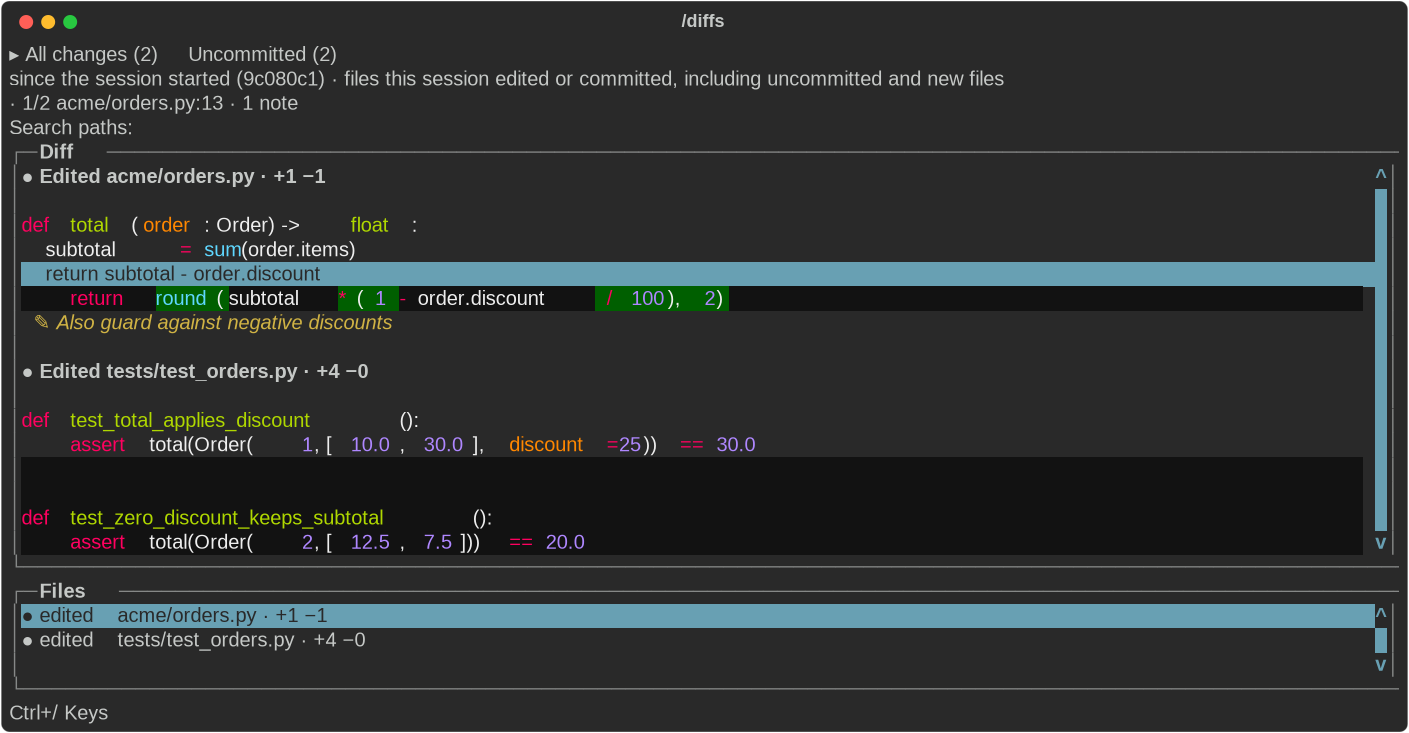
The net change it shows depends on the checkout:
- In a linked worktree (the default with
worktree on): the whole branch against its merge-base with the mainline branch, including uncommitted and untracked files. That's what a merge would bring in, whichever tool made the change (file tools, the shell, a formatter, a worker). Merging mainline into the branch moves the merge-base, so mainline's own changes never show up. - In any other checkout: everything since the commit the session started
from, limited to files this session's file tools edited or its own commits
touched, so work stays visible after the agent commits it. A commit counts as
the session's when it was made after the session began by your git identity,
so pulled commits are left out (without a
user.email, only the time counts). Your own commits count too, including another session's in the same checkout, and a session resumed much later still compares against where it started. Those files show all their changes since the start, including ones you made by hand. Files changed through the shell appear once they're committed. IfHEADno longer descends from the start (a rebase or branch switch), or the session predates this, it falls back to uncommitted changes in edited files, and the title says so.
Views and review checkpoints
The top line lists the views with their file counts; Ctrl+V cycles them:
- All changes: the net change above. Files with uncommitted changes are
marked
●. - Uncommitted: what the next commit would take in, against
HEAD(in a shared checkout, limited to the same session files). - Since review: what changed since you last pressed Ctrl+A (mark reviewed). The browser opens here whenever there's something new, so on a long session you read only the latest work instead of the whole branch again. Committing what you reviewed doesn't count as new.
Marking reviewed records exactly the state on screen. A saved session keeps it
in the repository under refs/pcode/sessions/<session id>/, so it survives
restarts; an unsaved one keeps it until /new. The ref keeps that snapshot,
untracked files included, in the repository until the session is deleted or
pcode removes its worktree. To start the review over sooner, delete it with
git update-ref -d refs/pcode/sessions/<session id>/reviewed. Refs hold trees,
not commits, so they never show up in git log --all. Changes a merge from
mainline (or, in a shared checkout, a pull) brings in don't count as new.
Notes for the agent
Move the cursor to a line in the diff and press Ctrl+N to write a note
about it; Enter saves it and Escape drops it. A note sits under its line, and
pressing Ctrl+N on the note edits it (saving it empty deletes it). On a
file's heading, the note is about the whole file. When you close /diffs, the
notes are added to your prompt as path:line, the diff lines around it, and
your note, ready to send or edit first.
With side-by-side diffs, a note anchors to the start of its hunk, since delta's rows pair two lines up.
Ctrl+E opens the file under the cursor in $VISUAL or $EDITOR, at
that line where the editor accepts one (vi-style +line, --goto for VS Code
and its forks, path:line for Helix, Zed and Sublime). The review reloads when
the editor closes. Ctrl+G reloads it at any time, for instance while the
agent is still writing; the view, your place, and your notes are kept.
Moving around
- The browser opens in the search line, searching paths (see Ctrl+F below). Enter moves to the file list.
- The file list is an index: selecting a file scrolls the diff to it, and moving through the diff keeps the list on the file under the cursor.
- Tab/Shift+Tab switch between the file list and the diff. The popup keys act on whichever has focus.
- Ctrl+F searches whichever pane has focus. In the file list it filters
files by path; in the diff it filters to changes with a matching line and
jumps to the first one. Matching is fuzzy: a plain substring, or joined word
prefixes such as
ed_uiforedit_ui.pyorsel_rowforselected_row. Every word of the query must match. Up/Down still move the file selection while typing; Enter returns to the pane. Switching panes and pressing Ctrl+F again starts a fresh query for that pane. - Ctrl+S/Ctrl+R jump to the next/previous matching diff line (Emacs's search keys), from either pane or the search line.
- Escape or Ctrl+C closes the popup and restores the editor draft, with any notes added to it.
Untracked files are included without touching your staging area. A file's diff
is clipped at 2,000 lines, and a file over 1 MB shows only its counts. When git can't produce the review
(no commits yet, a detached mainline), /diffs says why instead of opening.
Tool-call inspector
/tools (or /tools failed) opens a browser of every tool call in the current
conversation, including during a turn. It shows the calls available when you
open it; reopen it to see newer ones. The model keeps running while it's open,
and scrollback catches up when you close it. Inspecting never reruns a tool.
- Calls are newest first. The inspector opens in the search field, so typing filters straight away while arrows move the selection; Enter moves to the call list. Tab/Shift+Tab move between the search field, call list, and details.
- Ctrl+Y copies the selected call's command (or its whole arguments when it
has no command) and Ctrl+O copies its output. Copying uses
pbcopy/wl-copy/xclipwhen installed and OSC 52 otherwise; over ssh it tries OSC 52 first. tmux passes OSC 52 through only withtmux set -g set-clipboard on. Copies are truncated at 64 KiB, and the header says what was copied or that copying failed. - Ctrl+X toggles failures only, Ctrl+E toggles calls that changed files, Ctrl+T cycles tool-name filters, and Ctrl+F focuses search. Search matches tool names, statuses, and command/summary previews, not the full output. These work from any pane, including the search field.
- In details, arrows scroll by line, PageUp/PageDown by page, and Ctrl+U/Ctrl+D by half a page. Ctrl+U/Ctrl+D also half-page the call list, even while typing a search. The session browser uses the same keys.
- Mouse clicks, the wheel and drag-to-copy work unless
popup_mouseisoff; see selecting and copying text. - Escape or Ctrl+C closes the inspector and restores the editor draft.
- Wide terminals show calls and details side by side; narrow ones stack them.
Details include call and run IDs, timestamp and duration when captured,
structured arguments, outcome, and the returned output or error. A call that
changed files leads with its diff, drawn like the scrollback's (through delta
when it's on), then the result, then the raw arguments that asked for it. Commands and
results are shown as blocks, highlighted when they're code or JSON and verbatim
otherwise. Shell commands are formatted as Bash with shfmt when it's on your
PATH (the command is never executed); otherwise pcode breaks one-line commands
at top-level ;, &&, and || and keeps existing multiline layout. Each
command line starts with a display-only $. Ctrl+Y still copies the
command exactly as run.
Nonzero exits, timeouts, and tool retries count as failures; interrupted calls
and unknown results are marked separately. Command tools show an Execution
row saying whether the model waited (foreground) or took a job handle
(background); background calls are tagged in the list, so searching
background finds them. Background launch, check, and stop calls show their
process ID and related calls when available. A successful launch doesn't mean
the process finished successfully.
Provider-run web searches (Anthropic's native web_search, used when the
web_search preference is auto) list each hit's title, URL, and age. The page
text arrives encrypted for the provider, so the inspector can't show it. Local
searches (Exa or DuckDuckGo) and get_page return plain text and show in full.
What the inspector shows is a copy saved in the session's
transcript.jsonl, not an execution log. It survives resume and later failed
requests. Limits:
- Arguments and results are each capped at 128 Ki characters, with truncation markers. Output a tool had already truncated can't be recovered here.
- Unsaved (
--no-save) conversations keep at most 8 MiB of payload text; older details are dropped and labeled, while the call list stays. /newresets the inspector.- Calls from older sessions that didn't capture arguments or results show a missing-details label.
Scrollback and history
Use your terminal or tmux scrollback, selection, and search for conversation history. The conversation isn't drawn in an alternate screen; only popups are.
Replies appear in scrollback as rendered Markdown (headings, lists, highlighted code, tables), one finished block at a time. A paragraph or heading appears once it ends, a code block once its closing fence arrives, and a list or quote once the next block starts or the reply ends, so each shows up whole. Already written blocks are never rewritten, so a Markdown reference link defined later in a reply doesn't update earlier text. The spinner and task widget stay live while a block is in progress. See Paced scrollback for how blocks are animated in, and the transcript for what else is written there.
Live model messages and transcript events are saved unless --no-save is set.
Offline preview
Run pcode with no model configured (no --model and no saved default) and it
opens an offline preview: the full interface, answering with canned replies and
sample tool activity instead of calling a model. It's a quick way to try the
keys, popups, and themes. pcode --theme-preview prints a style sample and exits.