Scrollback and transparency
pcode doesn't take over your screen. Replies, diffs and command output go into your terminal's normal scrollback, and only the editor and a small activity panel at the bottom redraw. Everything you already do in a terminal keeps working: scroll with the mouse or tmux copy mode, find with your terminal's search, select and copy.
Choose what's in scrollback, then change your mind
pcode keeps the transcript it wrote, so it can rewrite your scrollback when you change what you want to see. A toggle doesn't just affect what comes next: the history already on screen is rebuilt to match.
A typical rhythm:
- While a tricky turn runs, press Ctrl+G twice (or
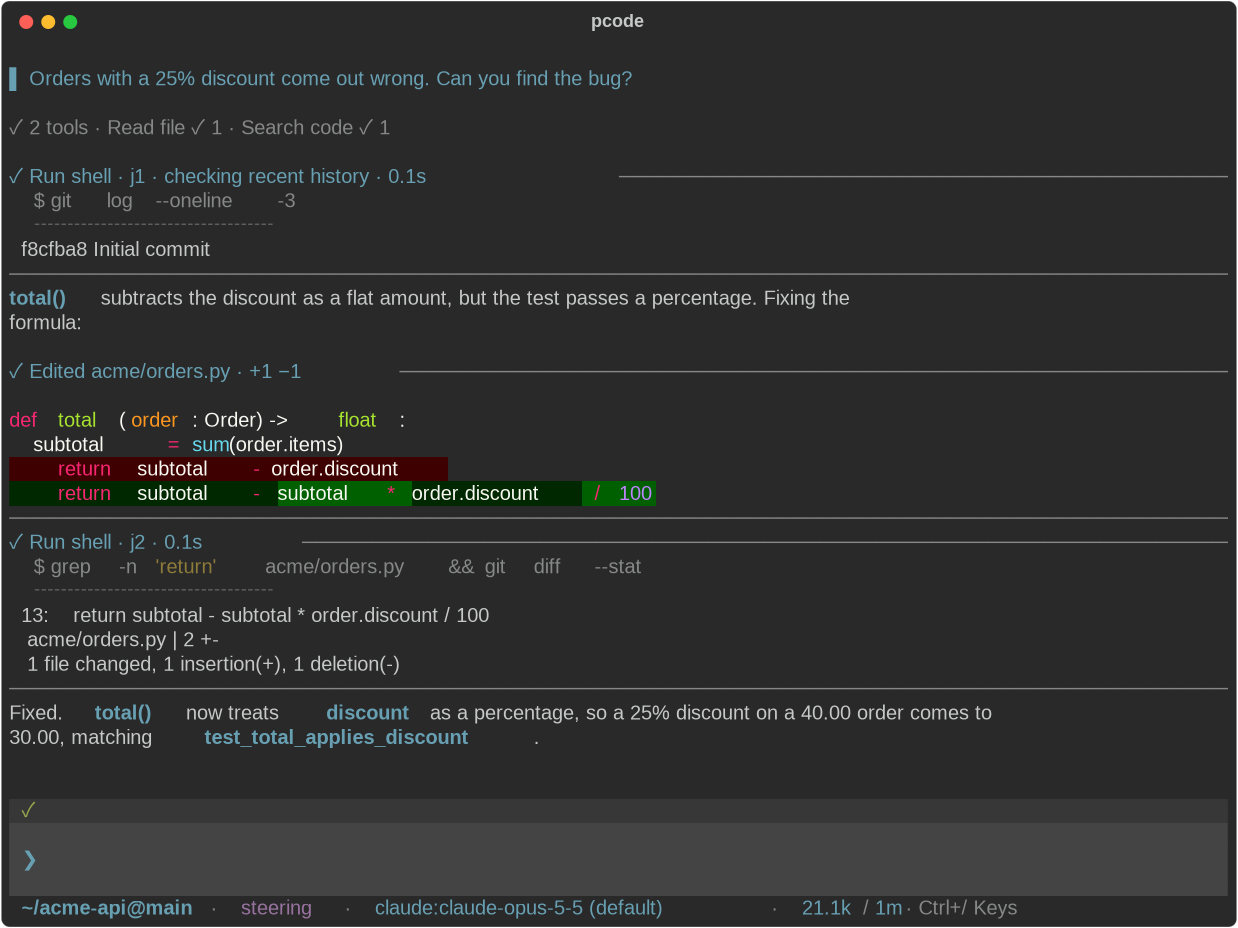
/show-commands scrollback) to mirror every shell command and its output into scrollback, so you can watch the tests fail and pass. The first press alone shows a running command's output live, without keeping it. -
Once it's done, press Ctrl+G again (
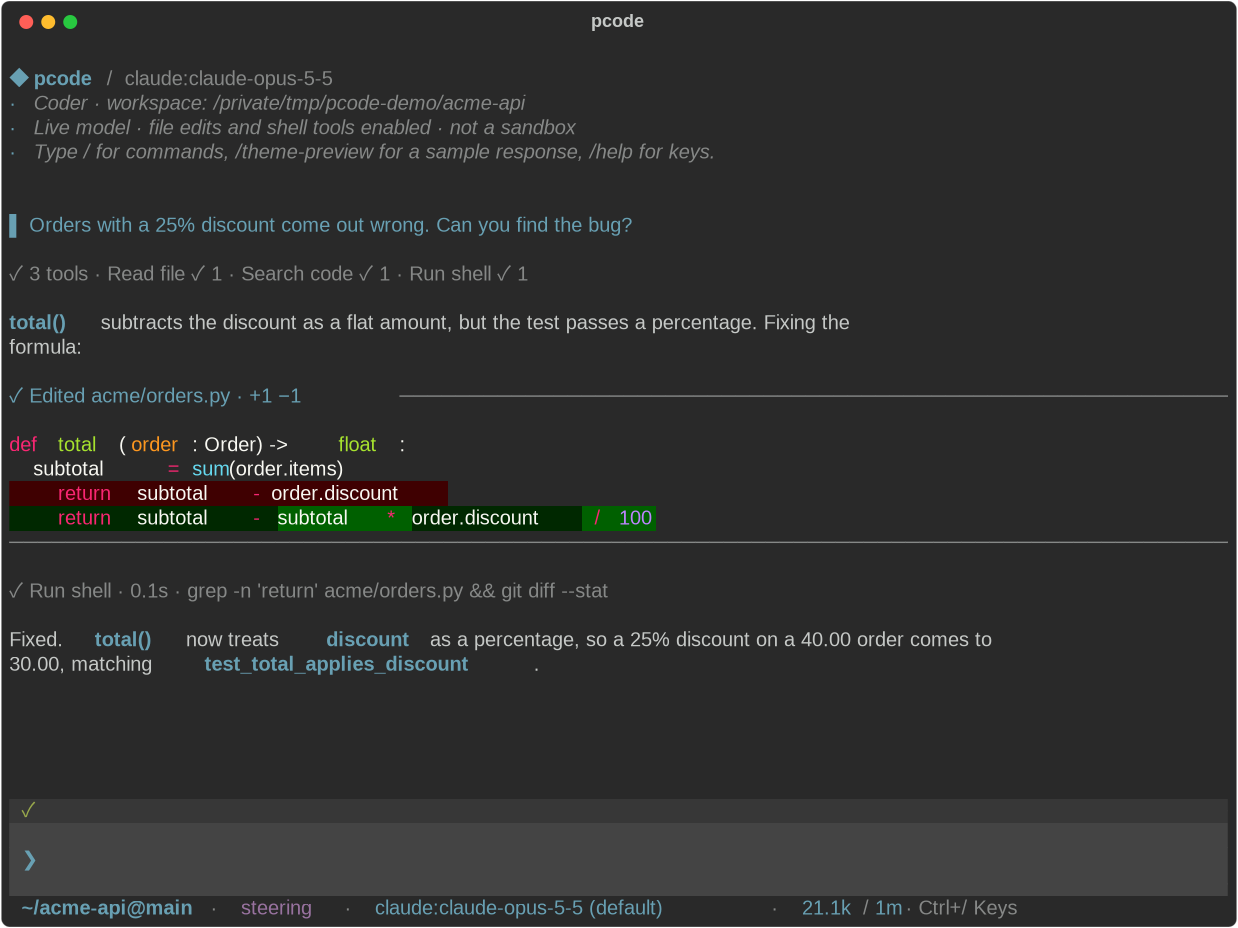
off). The same history comes back with the command output gone and each run of tool calls folded into one line, so the reply is easy to find:✓ 15 ✗ 1 tools · Edit file ✓ 10 · Run shell ✓ 5 ✗ 1 -
Want a line per call instead? Ctrl+] (or
/group-tools off) unfolds them, again for the whole history.
Here is one turn both ways. First with commands hidden and the tool calls folded into a line:
Then the same history with show_commands scrollback, rebuilt with each command and its output:
The toggles, each saved as your default:
| Toggle | Shows or hides |
|---|---|
Ctrl+G, /show-commands scrollback |
Each shell command and its output |
Ctrl+Z, /show-edits |
The diff of each file edit |
Ctrl+T, /show-thinking |
The model's readable reasoning in the activity panel, in scrollback, or not at all |
Ctrl+], /group-tools |
One line per run of tool calls (the default) or one per call |
Ctrl+O, /show-activity |
The activity panel in the editor box: thinking, tool calls and tasks |
Hidden isn't deleted. Thinking, diffs and command results are kept even while hidden, including in resumed sessions, so turning a toggle on later shows them for the whole conversation. Rebuilding never reruns a tool.
By default, blocks use soft shaded backgrounds (frame_style shaded) rather
than box-drawing borders, and edit diffs render through
delta when installed—with smart dedent
so deeply indented hunks stay readable in narrow panes
(diffs with delta).
The same rebuild runs when you resize the terminal, so narrowing a pane doesn't
leave half-wrapped copies of the old layout behind, and /redraw does it on
demand. One thing to know: a rebuild clears the terminal's scrollback first,
including anything from before pcode started, then writes pcode's transcript
back. See the transcript for limits and settings.
Every command, nothing hidden: /tools
Summaries in scrollback are for skimming. When you want the full story,
/tools lists every tool call in the conversation, newest first, and works
while a turn is still running:
- the exact command or arguments, formatted for reading
- whether the model waited on it or ran it in the background
- how long it took and whether it failed
- the complete output the model got back
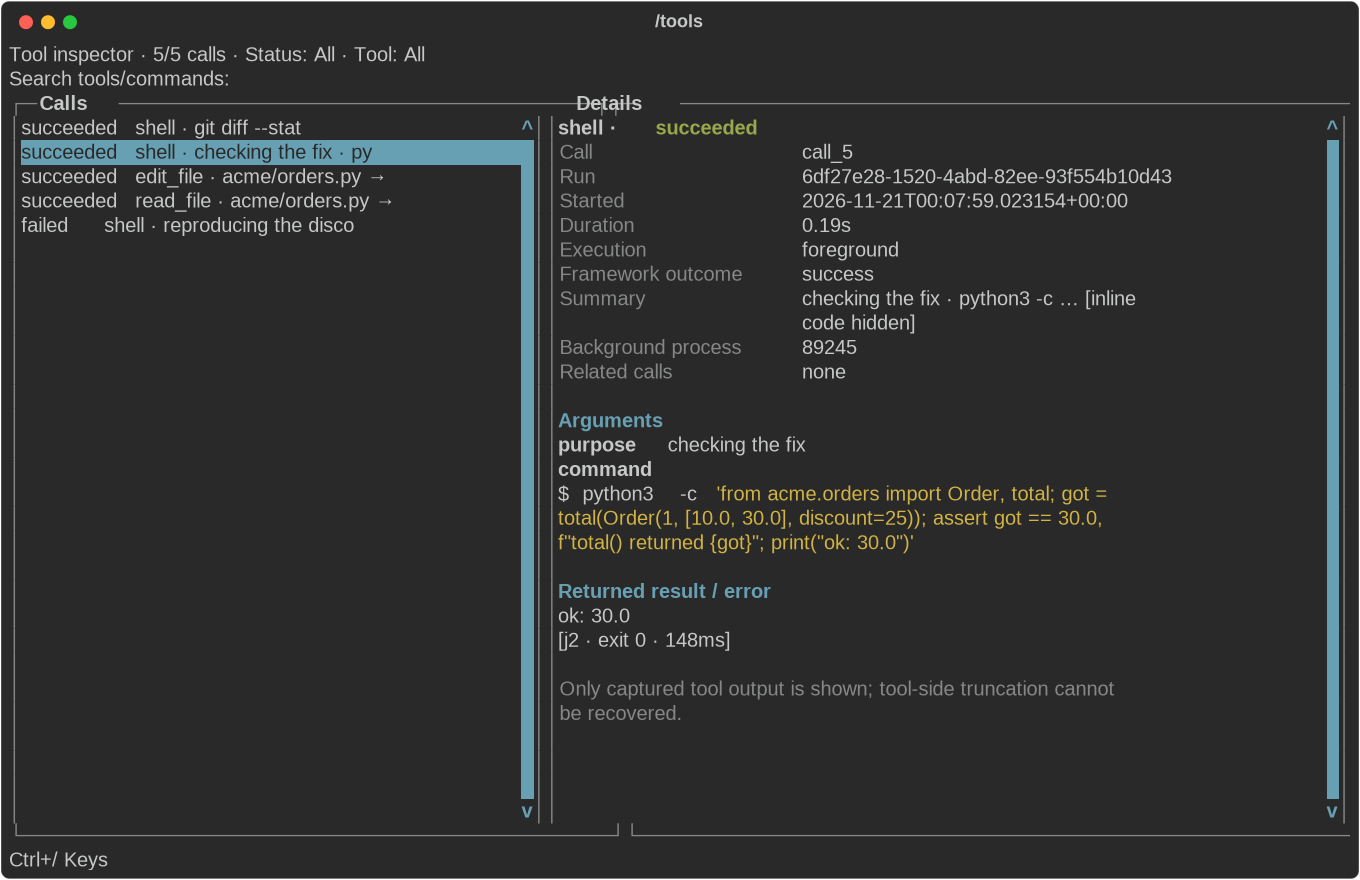
Type to search, press Ctrl+X to show only failures, and Ctrl+T to filter by
tool. You can also jump straight into a filtered view with /tools failed or
/tools edits. Ctrl+Y copies the command so you can run it yourself, and
Ctrl+O copies the output.
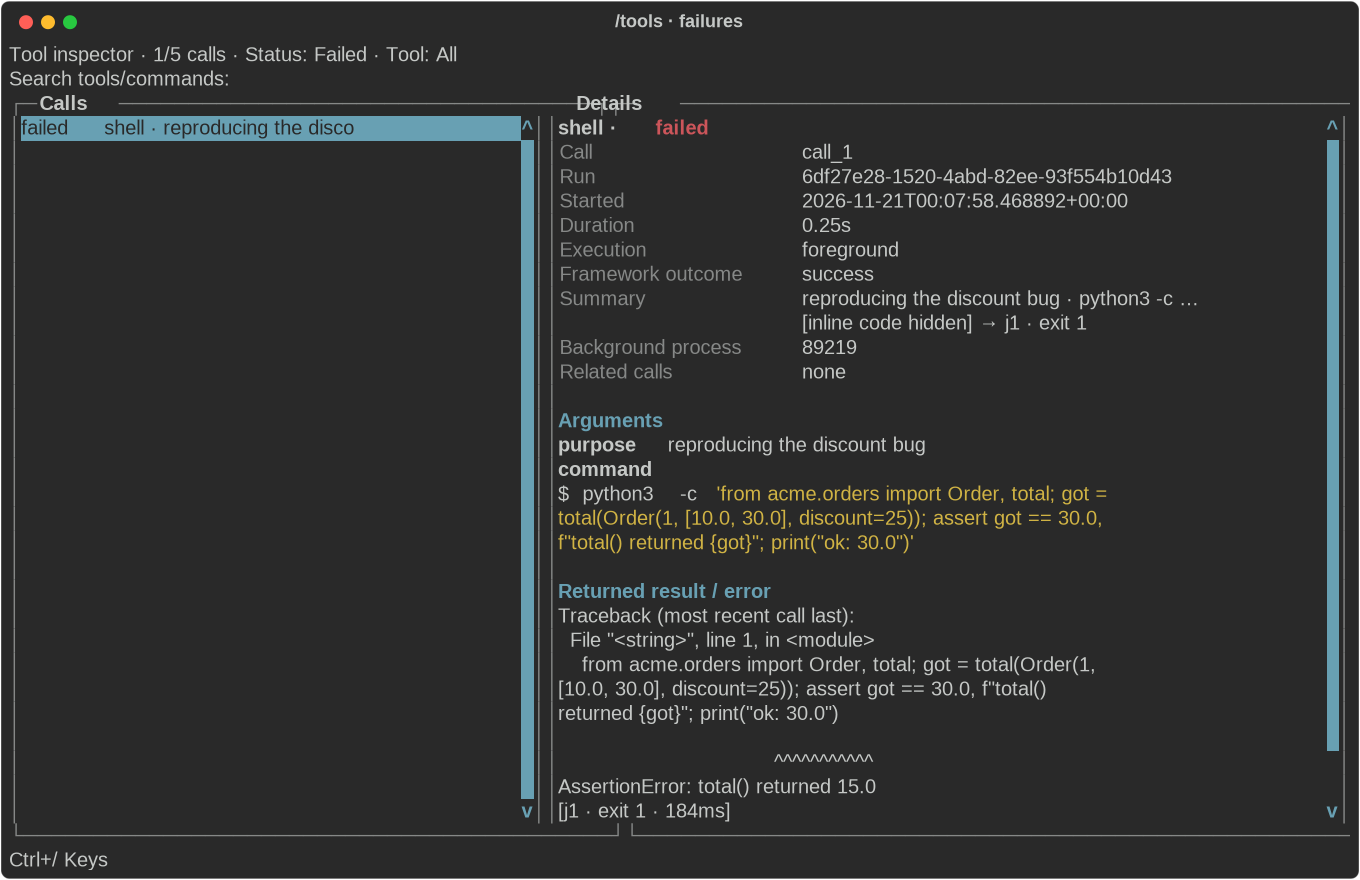
It works on resumed sessions too, so you can audit what an agent did last week. Opening it never reruns anything. See the tool-call inspector.
Review the changes: /diffs
/diffs opens the session's git diff, every file in one scroll, with three
views you can cycle through:
Since review: only what changed since you last marked the diff reviewed (the default once you've set a checkpoint).Uncommitted: staged and unstaged changes in the working tree.All changes: everything on the branch since it diverged from main.
Press Ctrl+A to mark the current state reviewed—that checkpoint persists
with the session, so on the next round of edits /diffs shows only what's new.
Press Ctrl+N on any diff line to attach an inline review note; when you
close /diffs, every note is injected into your prompt with its path:line
and surrounding diff context so you can send the agent straight to the lines
you flagged.
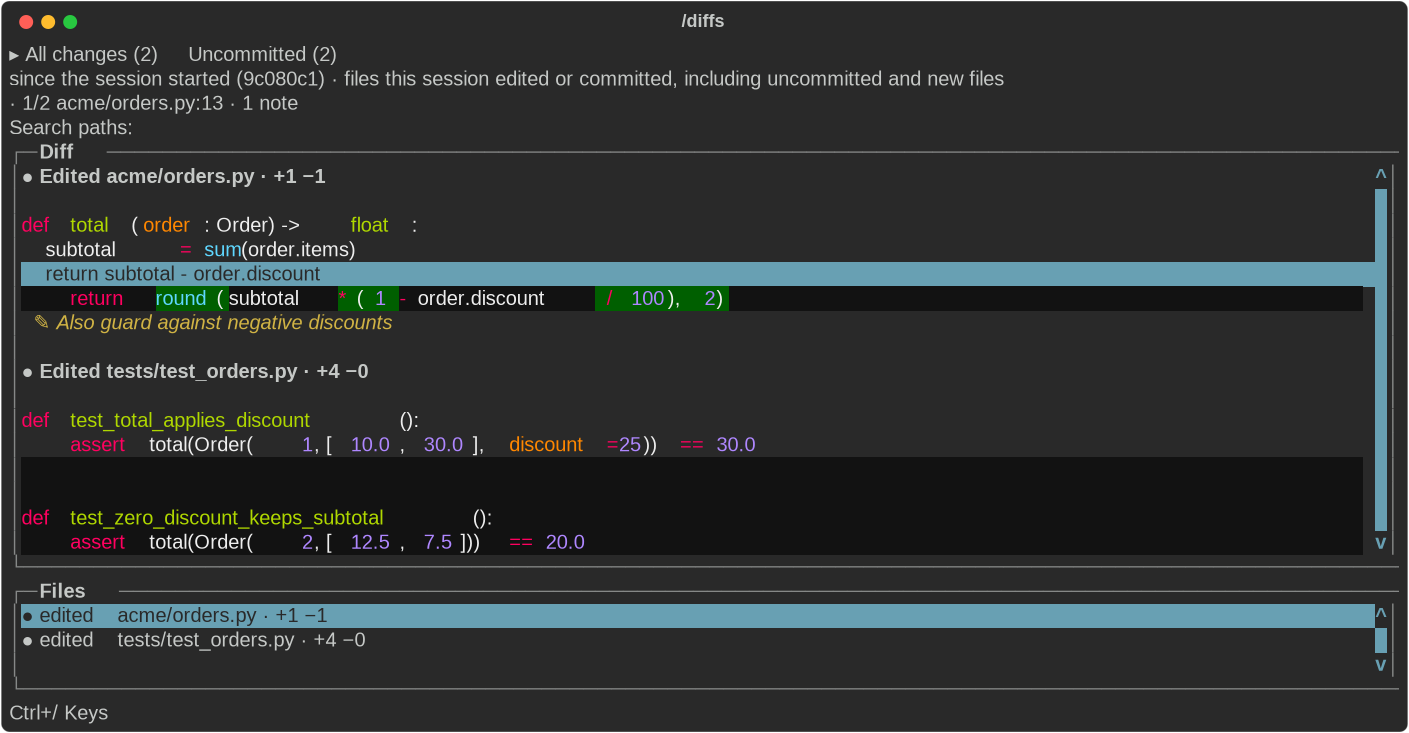
See the diff browser.